We will use Discord to talk to each other while we play games. In this tutorial, I will walk you through how to
- Install Discord
- Join the AnkiMaster Gamers group
- Chat via text
- Chat via voice
- Troubleshoot microphone problems
Create Discord account
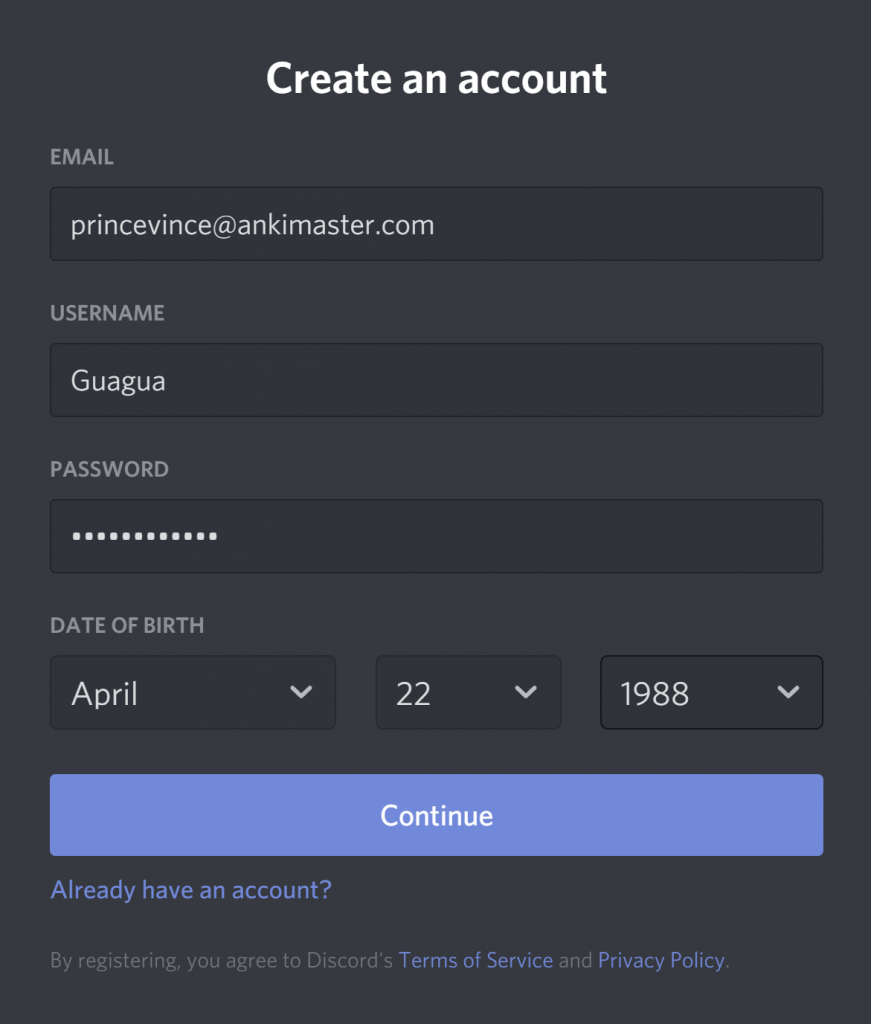
Create a new account on the Discord register page.
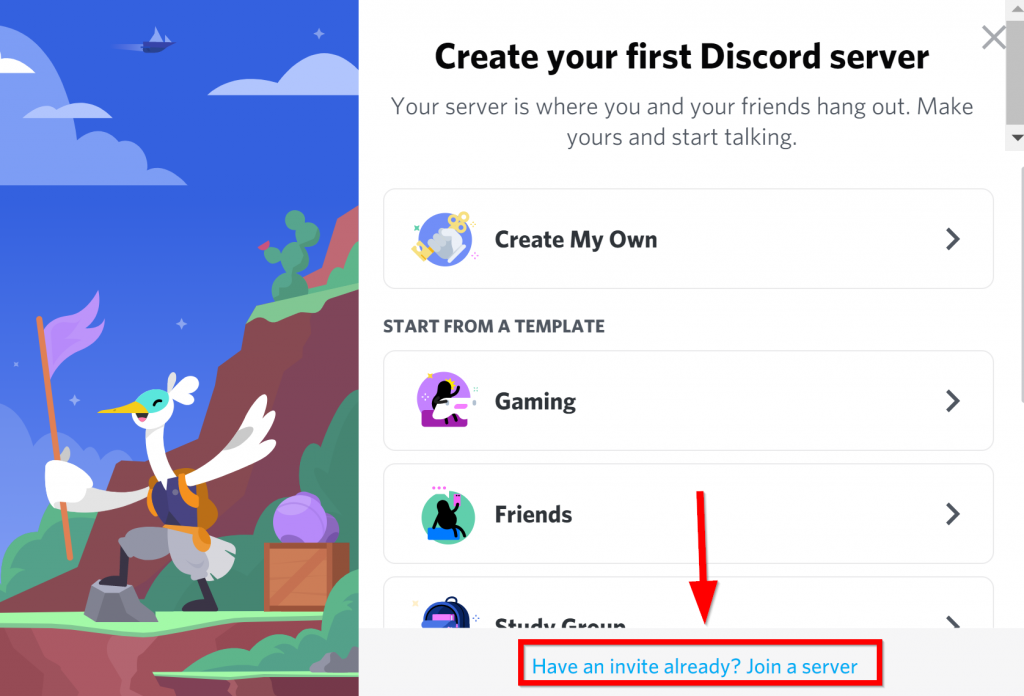
Click the text at the bottom to join our server.
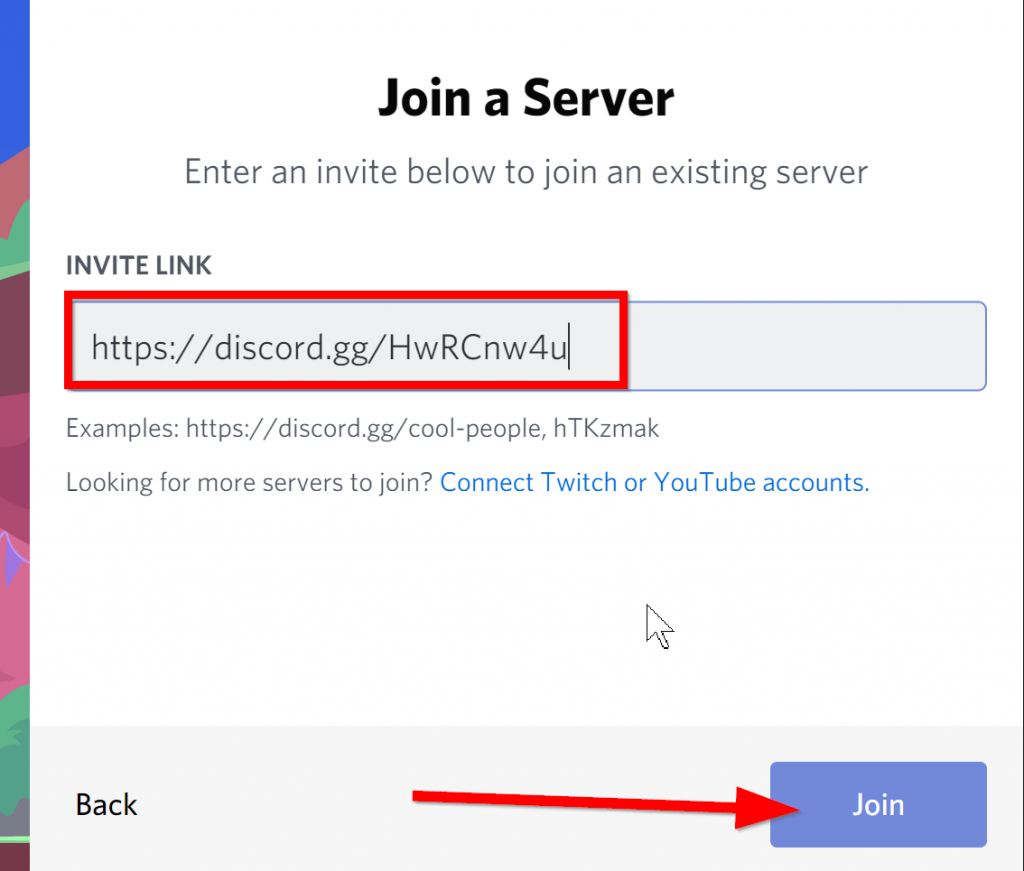
Copy the link below and paste it into the box. Click Join.
AnkiMaster Discord Link: https://discord.gg/jxhkdDv5gK
Download and install Discord
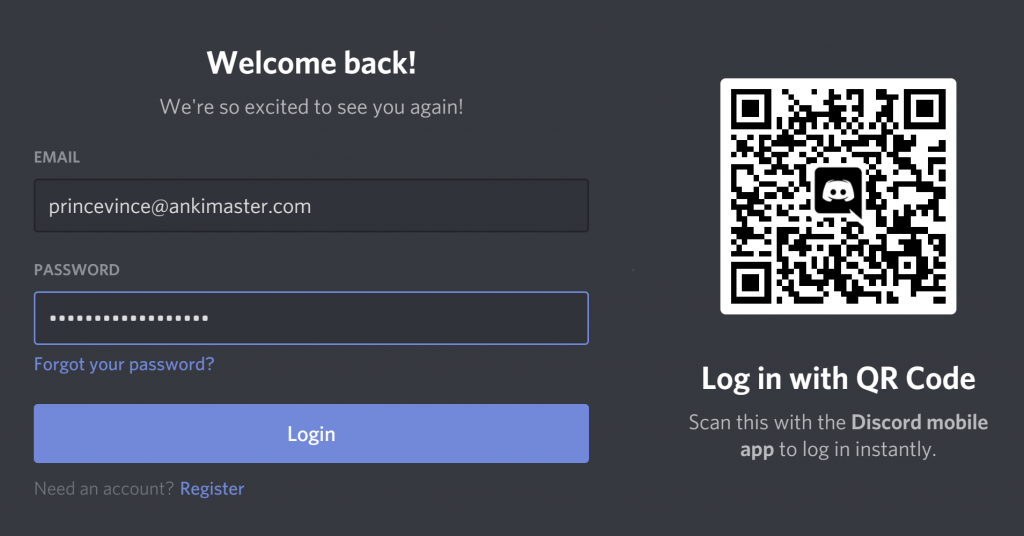
Download Discord and follow the installation instructions. When Discord finishes installing, open it and log in.
Send a message on a text channel
The servers that you have joined will appear on the left sidebar. Click the AnkiMaster server.
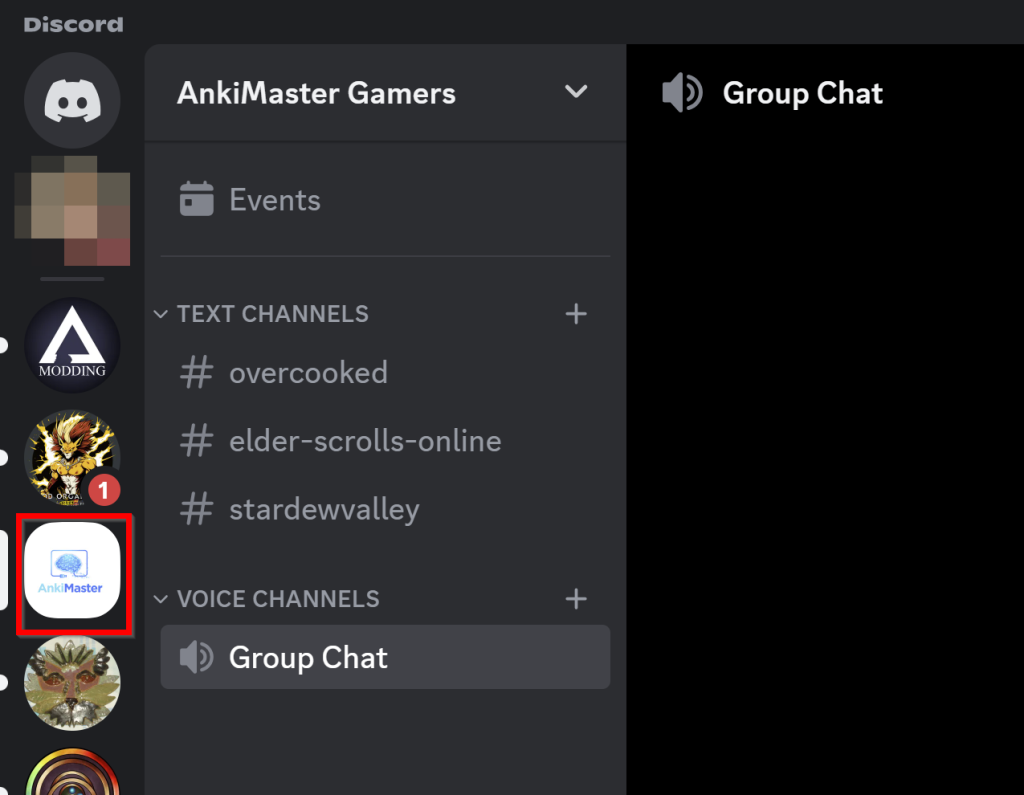
Here we can see the text channels. These are game-specific chats.
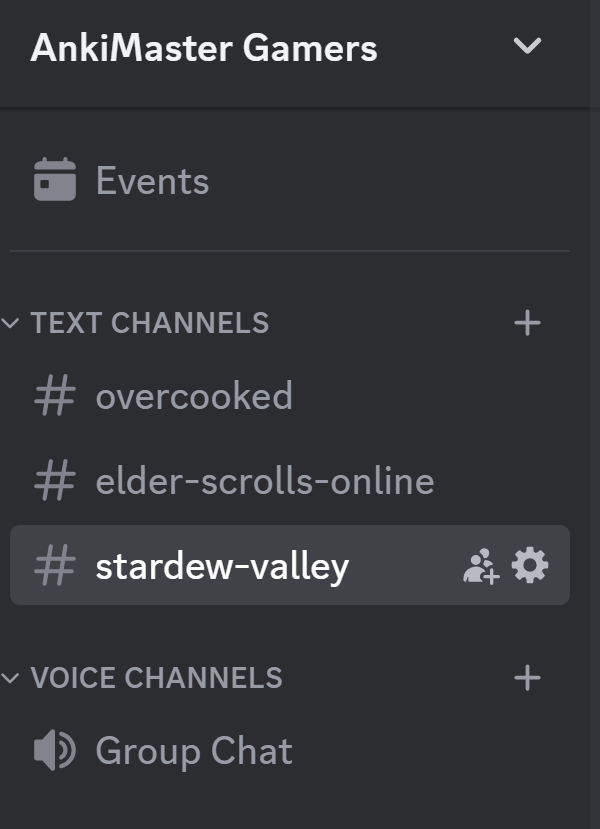
If you want to play one of these games with us, click the channel and send us a message.
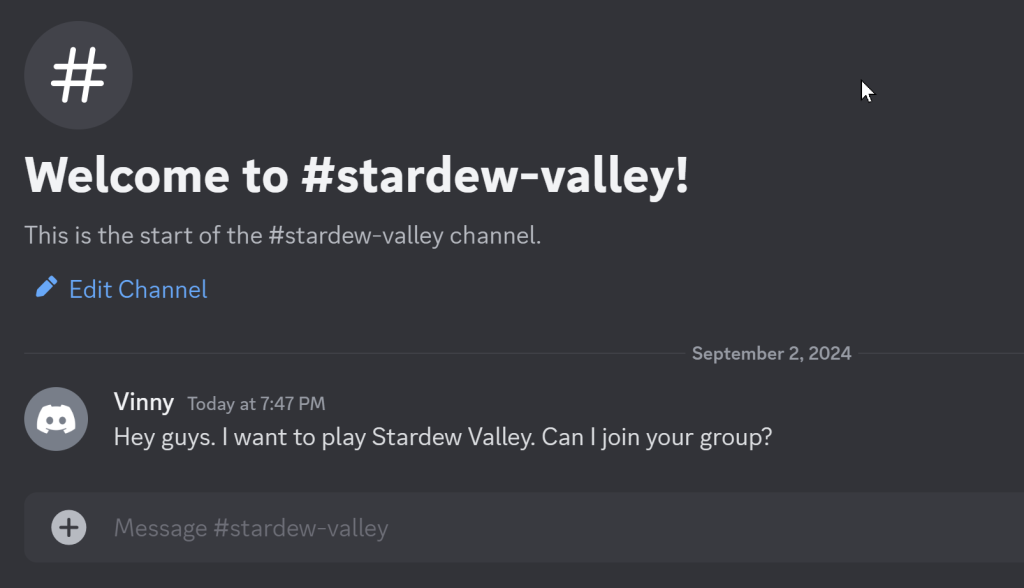
We will respond as soon as possible to invite you into our game.
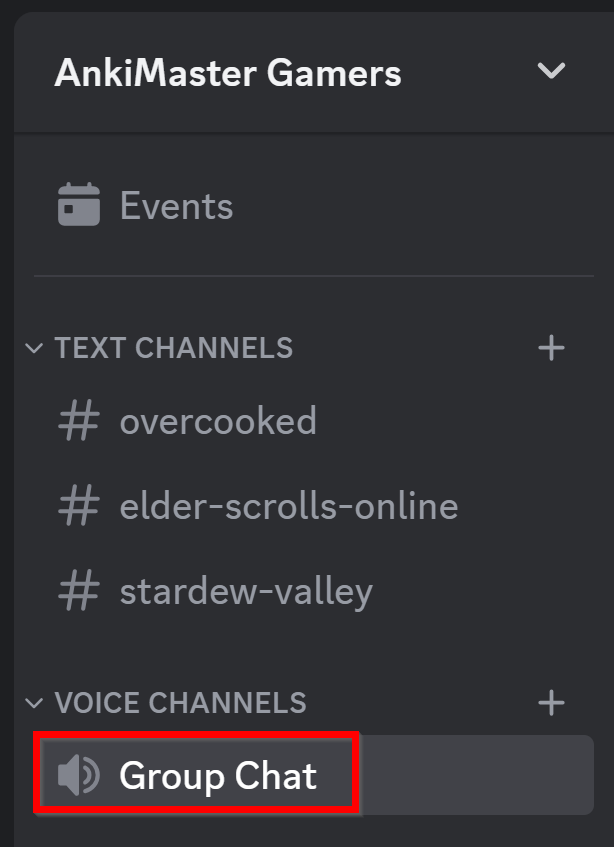
Connect to the Group Chat voice channel
When you are ready to play, join the Group Chat voice channel. Just click on the channel to join.
Here you can see I am connected by voice.
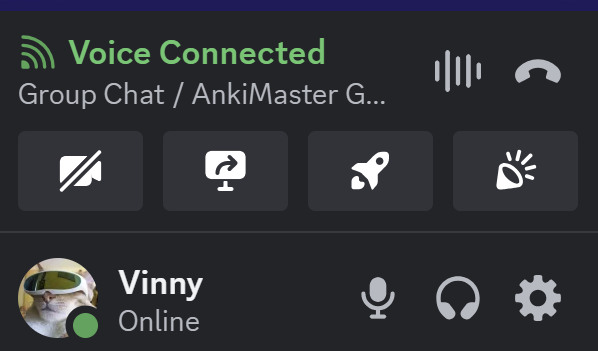
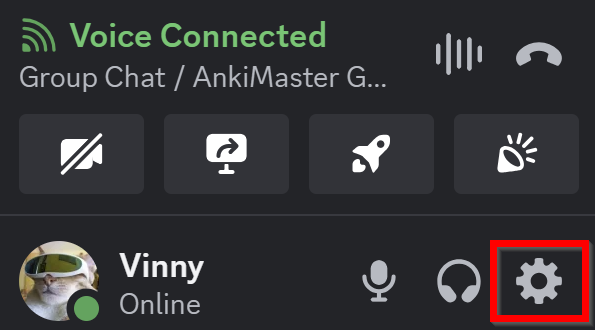
You can try to speak and we will respond if we can hear you. If we cannot hear you, please check your microphone by clicking the settings gear icon.
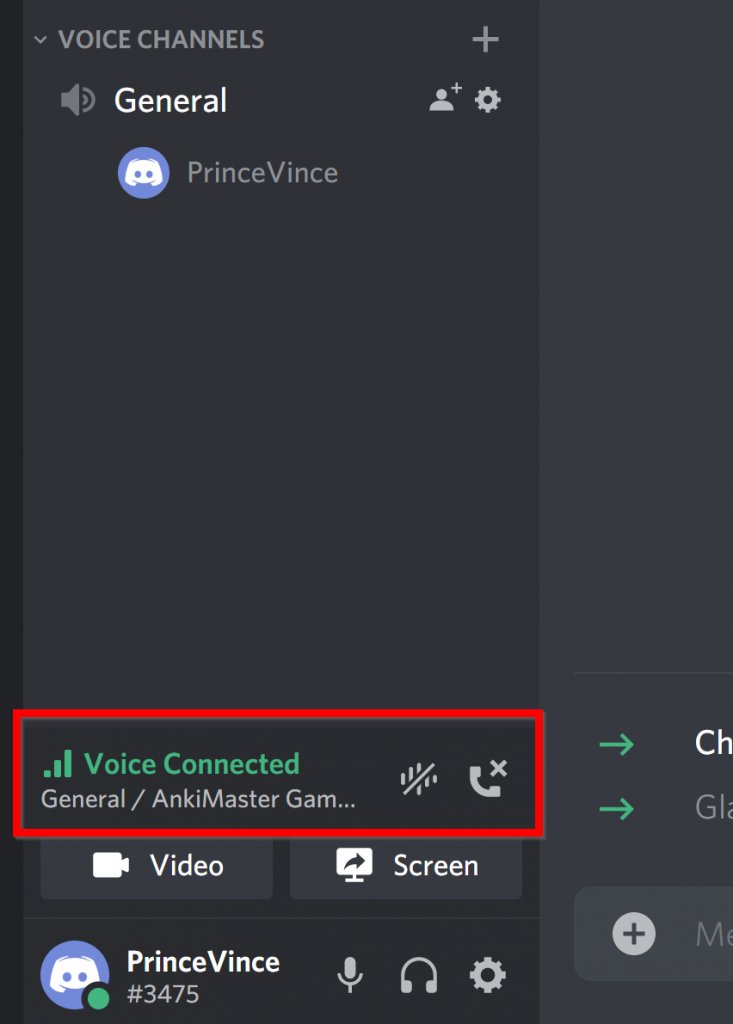
You can see here that I am connected to the General voice channel. Now I can talk to other players connected to the channel. This is how we will communicate during the game events.
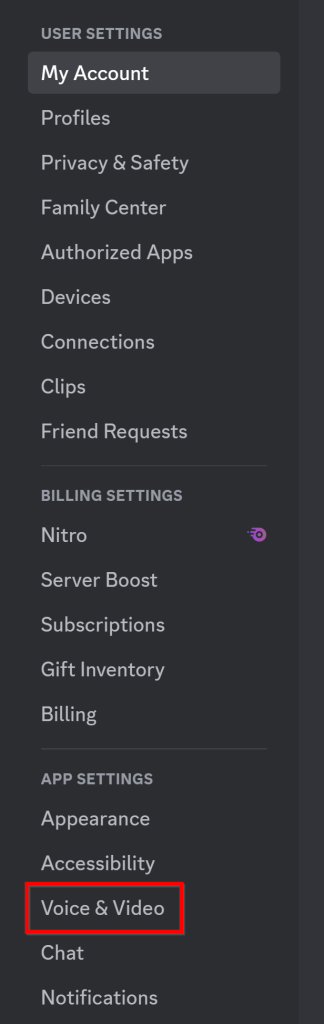
Then click Voice & Video at the bottom of the left sidebar.
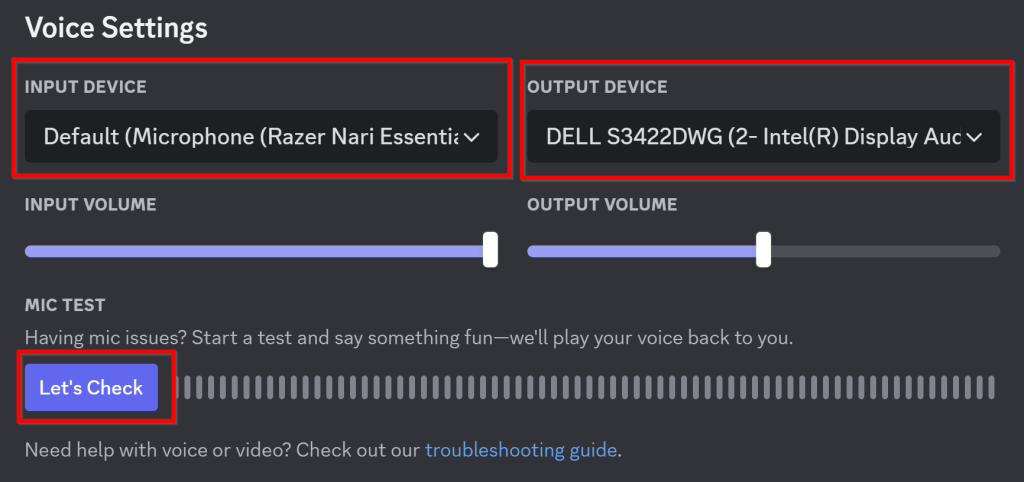
Check your input and output device. Adjust the settings here until you have a successful mic check. You can check your mic by clicking on the Let’s Check button.
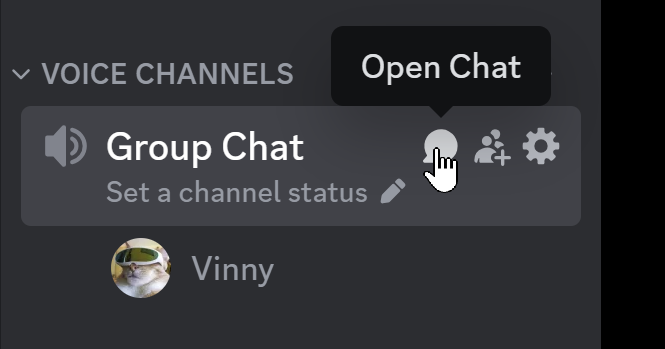
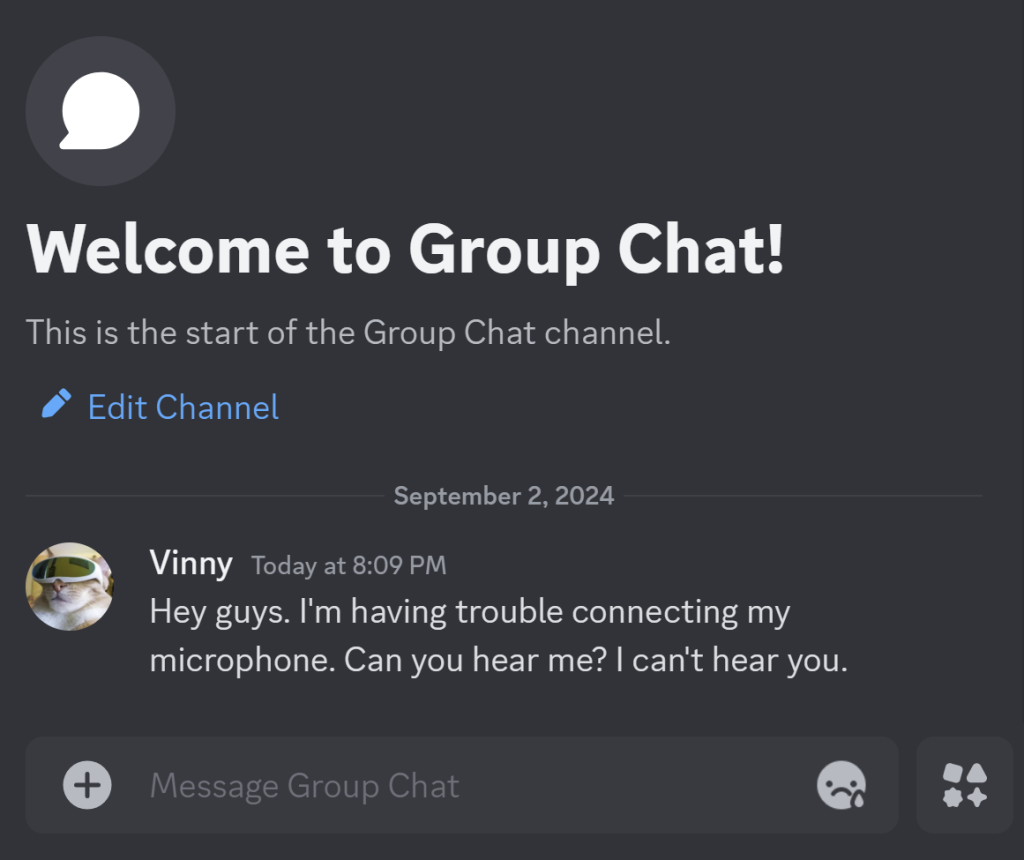
If you are still having trouble, you can still text chat with us. Just click the chat icon in the Group Chat.
Leave a Reply
You must be logged in to post a comment.