

Intro
Anki provides a cloud service called AnkiWeb to back up and share all your cards with your other devices. In this tutorial, you will learn how to synchronize your flashcards to your different devices such as an Android phone or iPad, or even another computer.
Tutorial
Create an AnkiWeb account
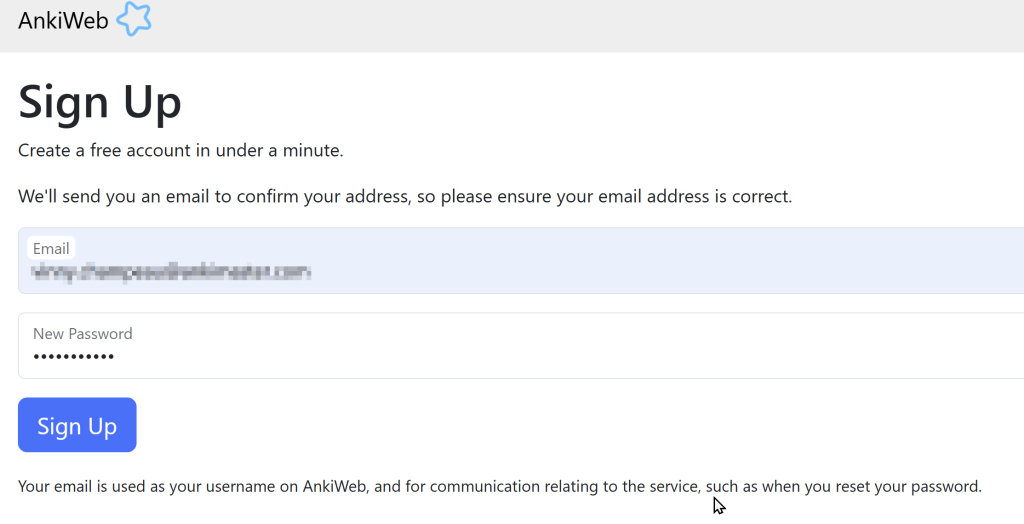
Go to AnkiWeb and create an account. Enter your email and create a password. Make sure your email is correct. If you enter your email incorrectly, nothing will work.
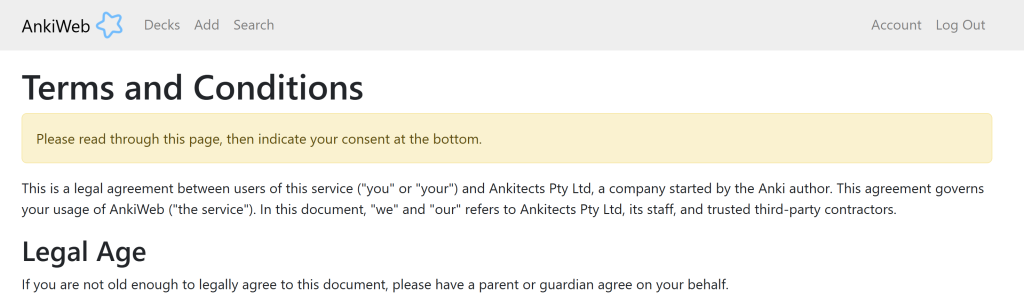
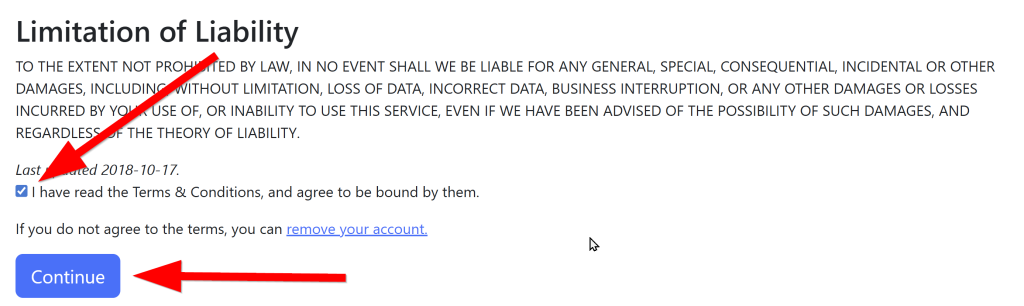
Scroll to the bottom of the Agreement page, check the checkbox, and click Continue.
Verify your account
Check your email. Find the email from AnkiWeb and click the link inside to verify your account.
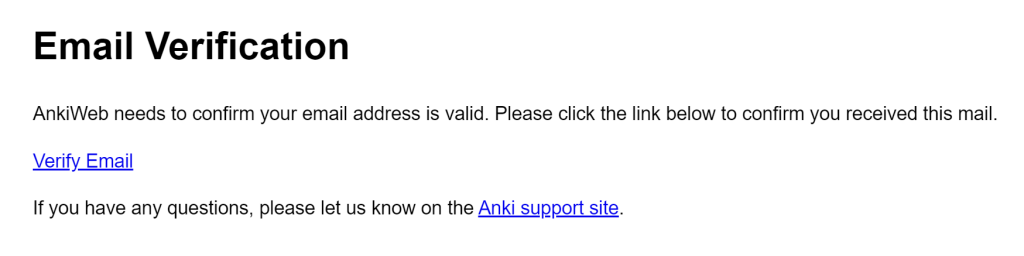
If you can’t find the email, check your spam folder.
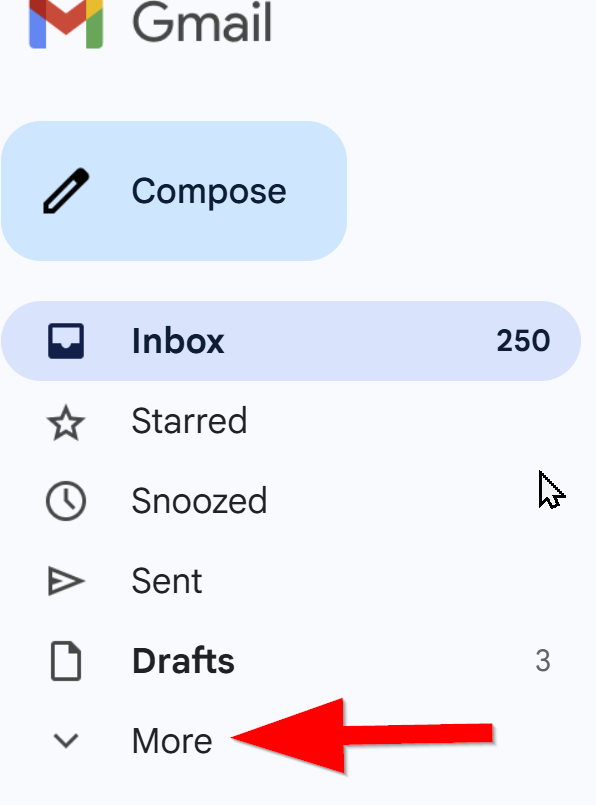
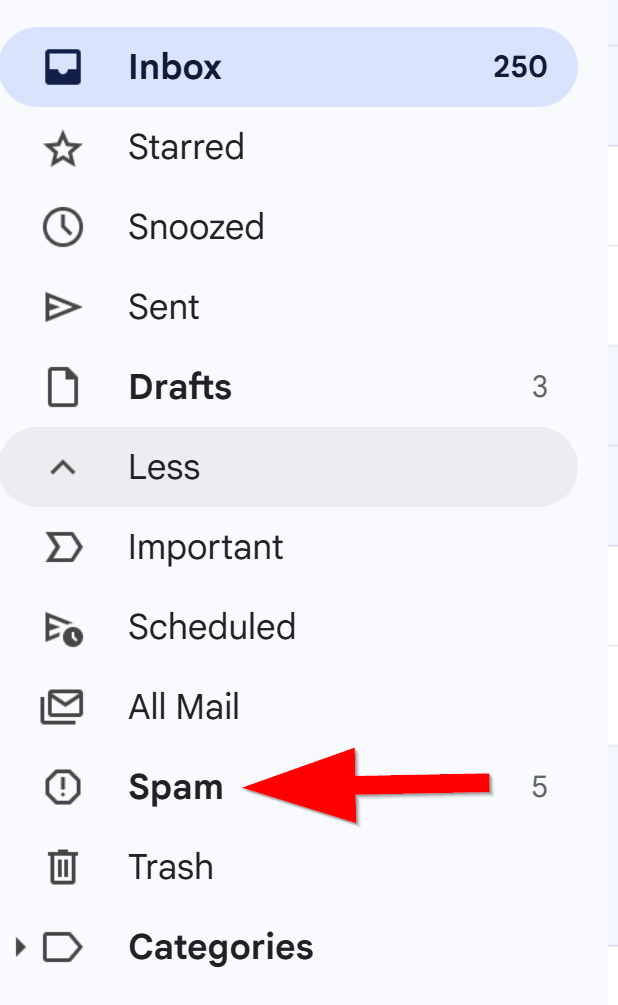
If you still can’t find the email, go back to the AnkiWeb website and double-check that you actually entered your email correctly.
In this picture I can see the email address that I registered with AnkiWeb.
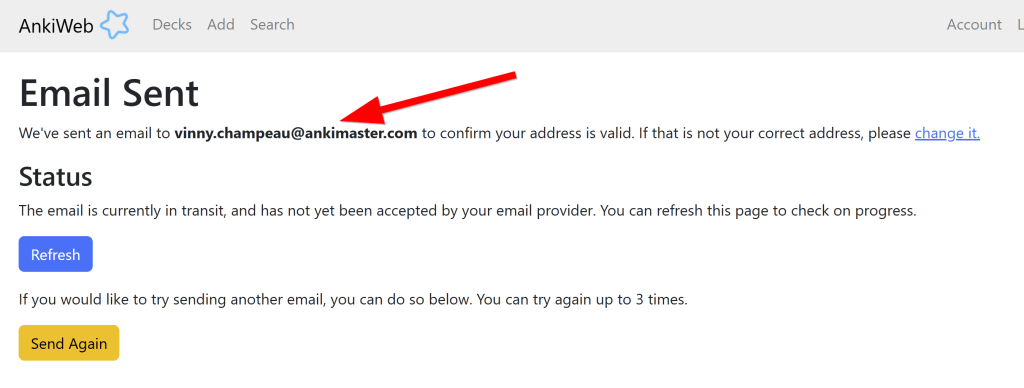
In this image, I can see my real email address.

These emails must match. If they do not match, click Log Out and click Sign Up again. Enter your CORRECT email and repeat the previous steps.

Synchronize your account
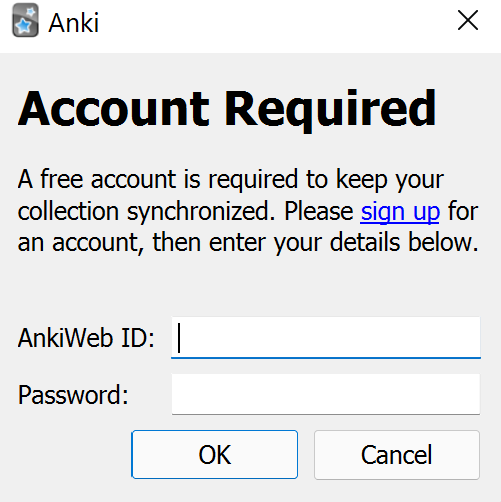
Open Anki. Click on the synchronize button.
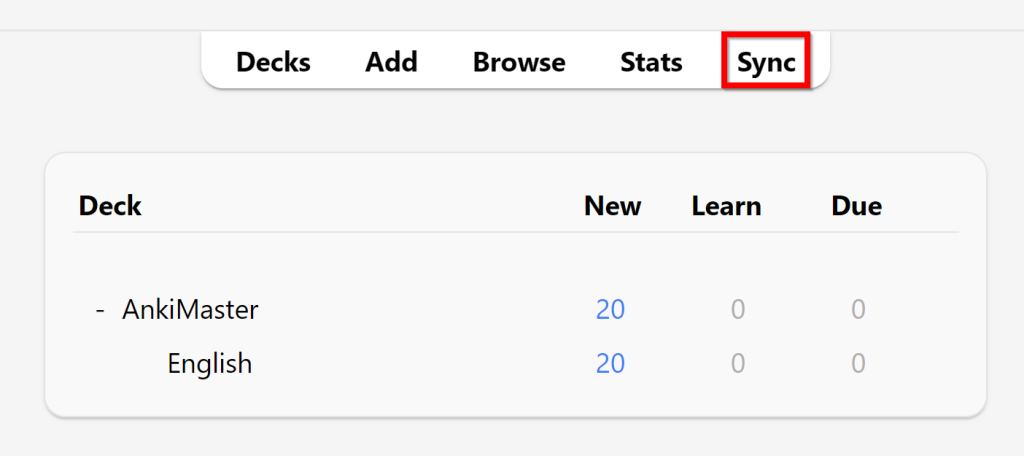
Type in your username and password and click “OK”.
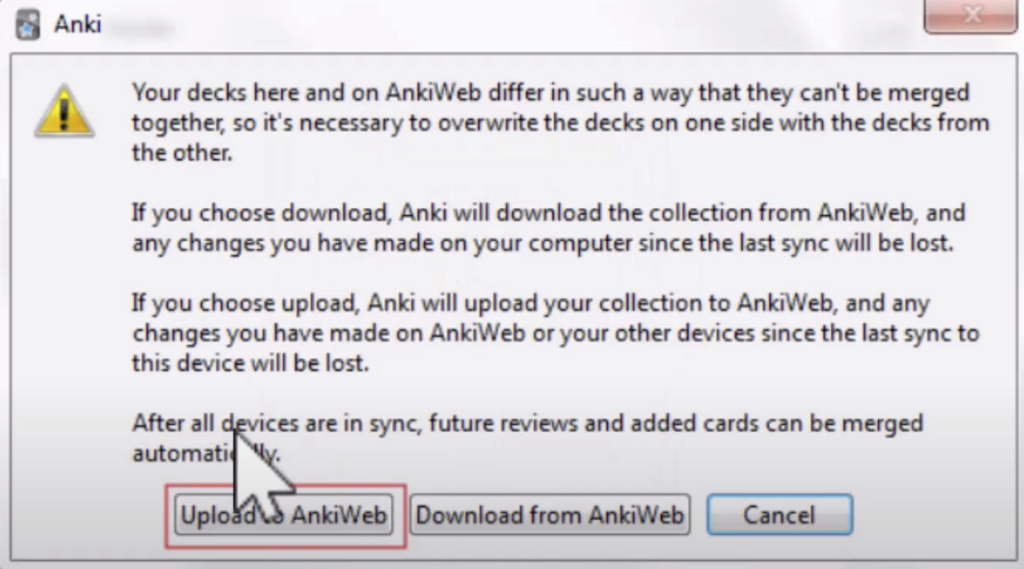
When you see this message, click “Upload to AnkiWeb” and it will synchronize. IMPORTANT: When you see this message, click “Upload to AnkiWeb.” This could take a few minutes.
Syncing other devices
You can sync your flashcards to any personal device. Here I will show you the process for syncing to an Android phone. First, go to the Google PlayStore and download AnkiDroid. It looks like this:
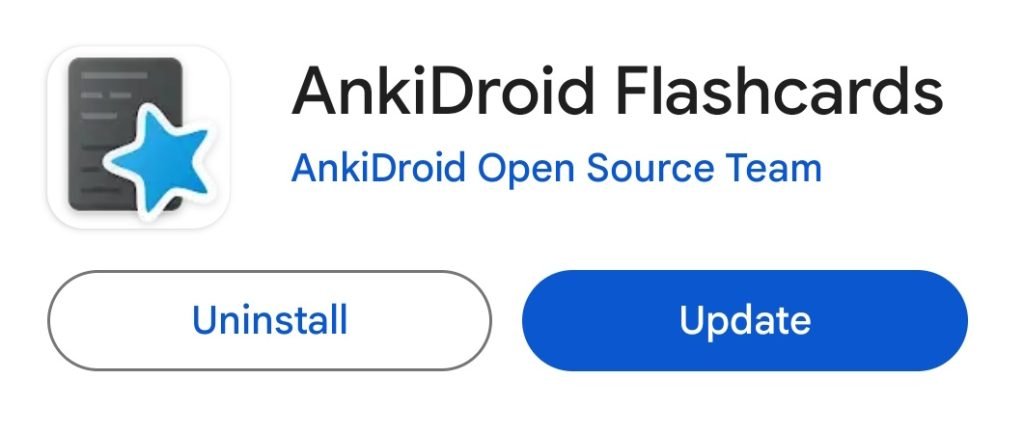
Make sure you find the right app. There are other apps with the word “Anki” in them, but they are not the real, original Anki. The real Anki app always has a black background with a blue star. If you are looking at an app and it looks different, it’s probably not Anki.
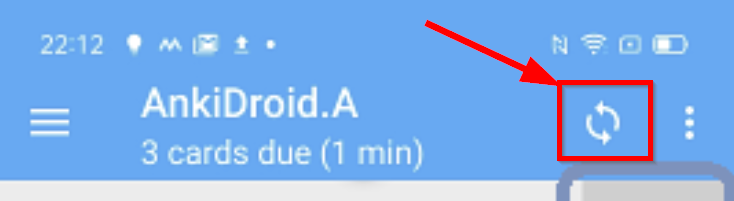
Open the app and look at the top of the screen. Press the sync button at the top to begin syncing your cards.
You’ll be prompted to enter your email and password. IMPORTANT: When you see this message, CLICK DOWNLOAD FROM ANKIWEB.
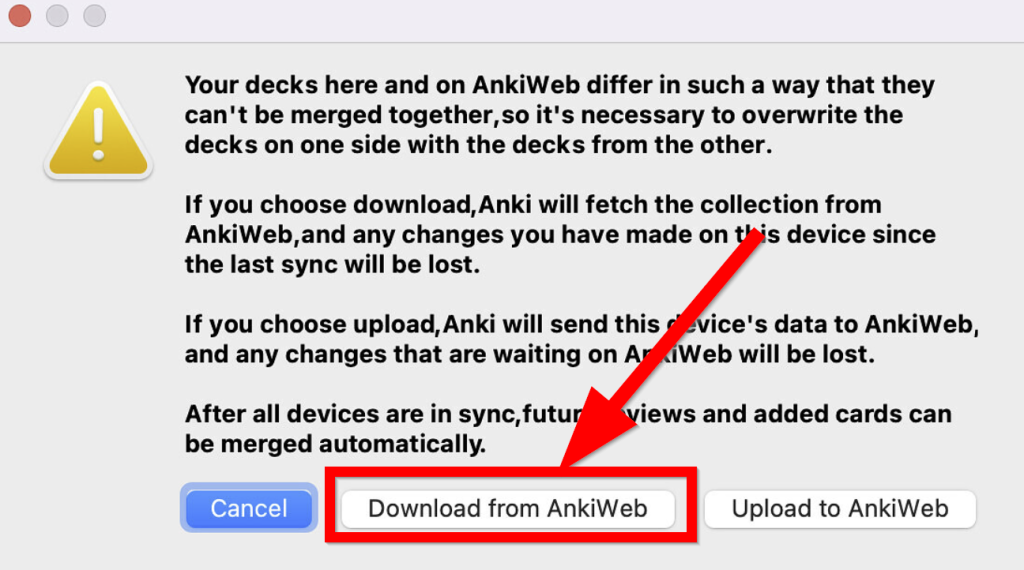
This can take some time. Eventually, you will see your decks appear. If your sync button looks like this with a little red dot next to it, that means that Anki is still syncing your audio and image files. Be patient while it finishes.

iPhone Users
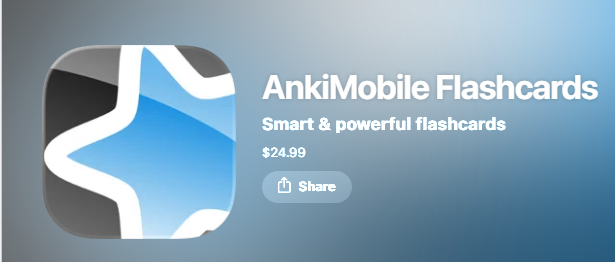
Unfortunately, Anki is not free on iPhone. It costs $24.99. It’s a one-time purchase, NOT a subscription. That means after you pay, you can use Anki on your iPhone for the rest of your life. If you don’t want to pay, you can still use Anki for free on Windows, Mac and Android. You could also open the website ankiweb.net on your iPhone and study through the Safari browser. I don’t recommend it because the app provides a much smoother experience.
The name of the Anki app for iPhone is AnkiMobile Flashcards.
Video Tutorial
Final Notes
If you need to reset your AnkiWeb password, follow this tutorial: How to reset your AnkiWeb password
Now your flashcards are synchronized to AnkiWeb. Your flashcards are safely backed up and you can sync your flashcards to all your devices so you can study your AnkiMaster flashcards anywhere and anytime! Could life get any better?

Leave a Reply
You must be logged in to post a comment.