
Require Reading
Intro
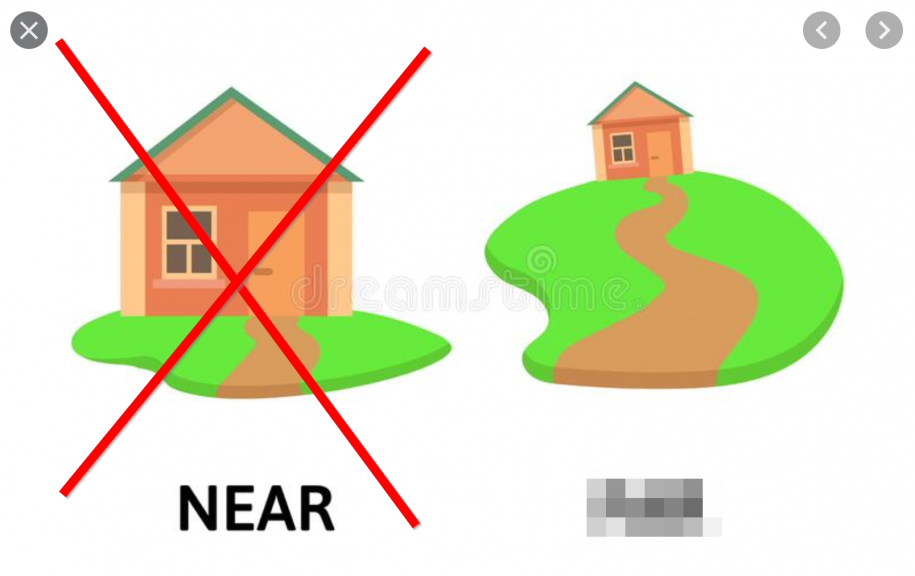
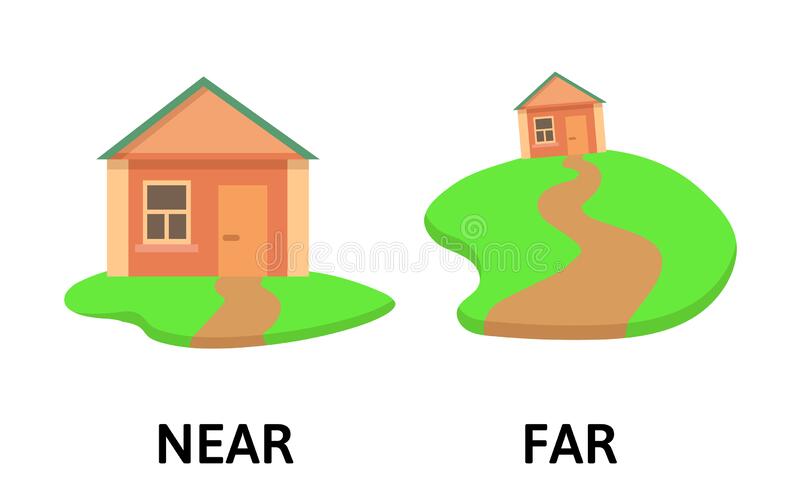
Have you ever found a great picture for your flashcard, but the word that you want to learn is in the picture?? Isn’t that annoying?
There is an answer to this. Greenshot! Greenshot is a screenshot software. It lets you take pictures of your screen. Then you can modify the pictures with the simple image editor.
In this tutorial, you’ll learn how to
- Remove unwanted words from your pictures
- Enhance your pictures with arrows, X’s and other symbols
Remove unwanted words
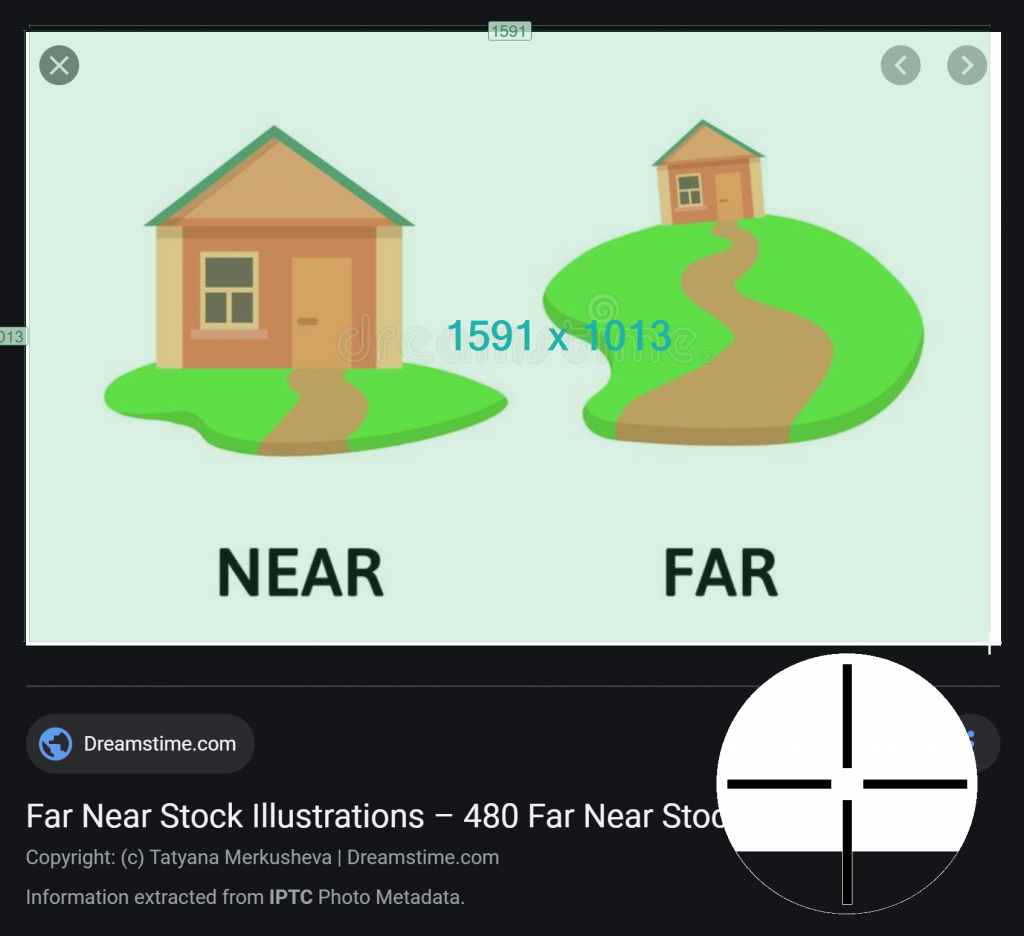
Press Print Scr. Click and drag your mouse to form a box around the image.
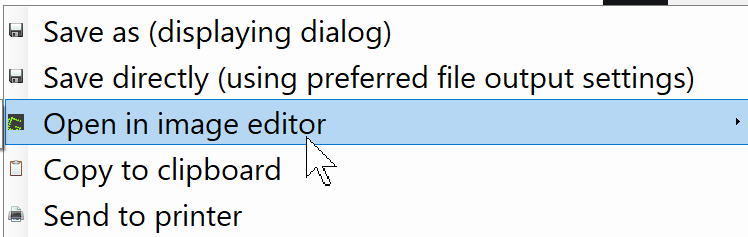
Click Open in image editor
Press the letter “o”. Click and drag your mouse over the unwanted words
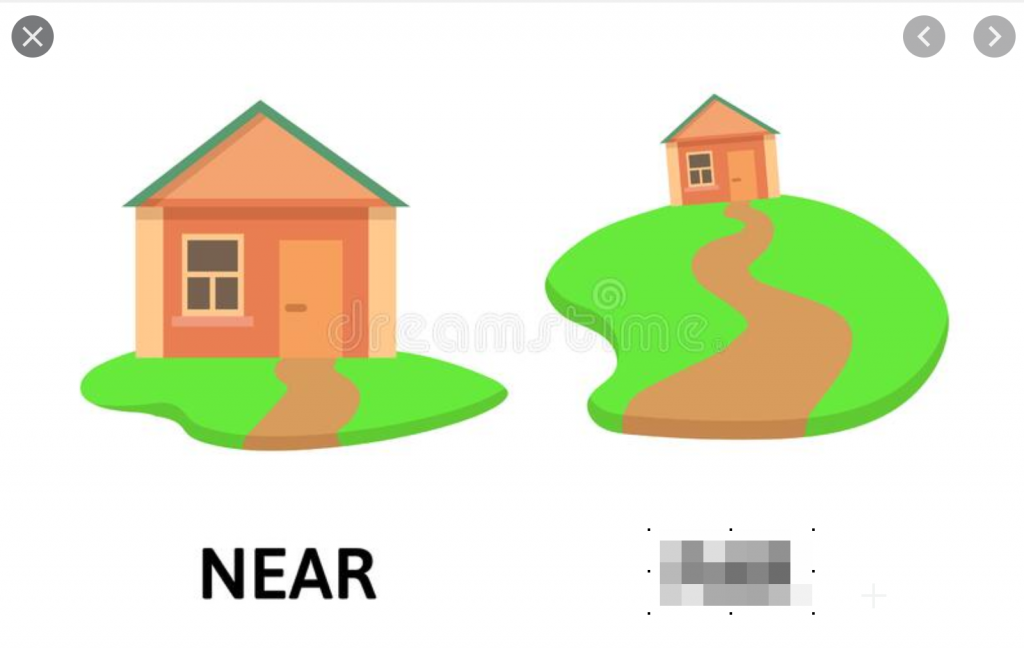
To make the meaning even more clear, I can put an X over the picture the says near. Press “L” to make a line.
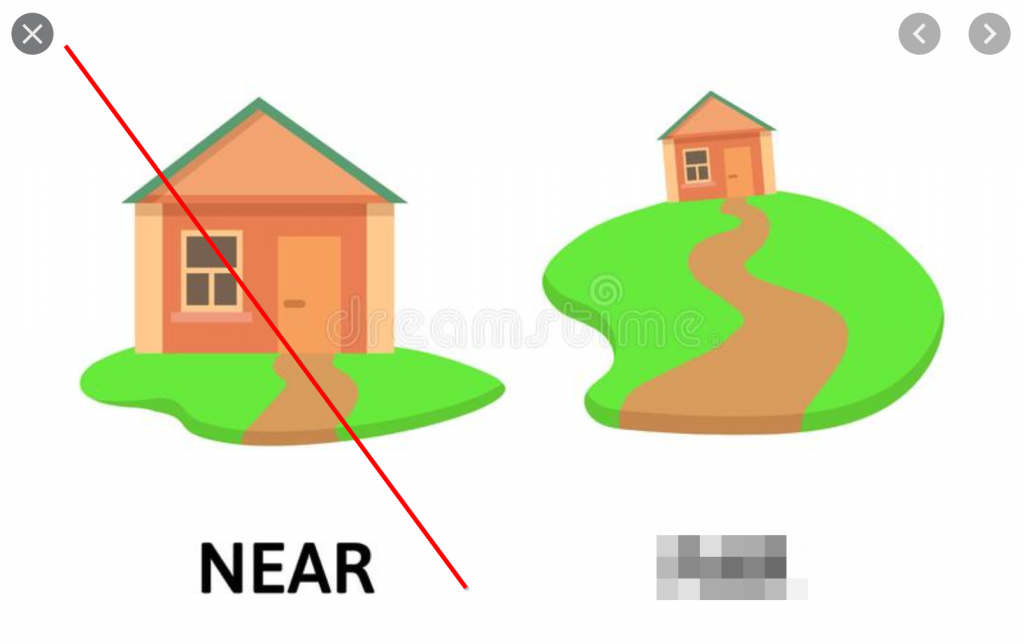
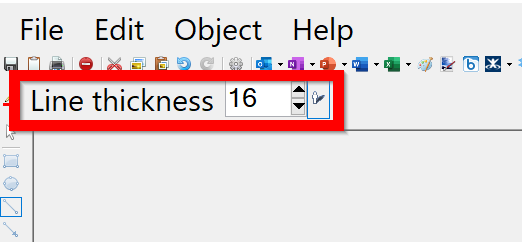
Make the line thicker.
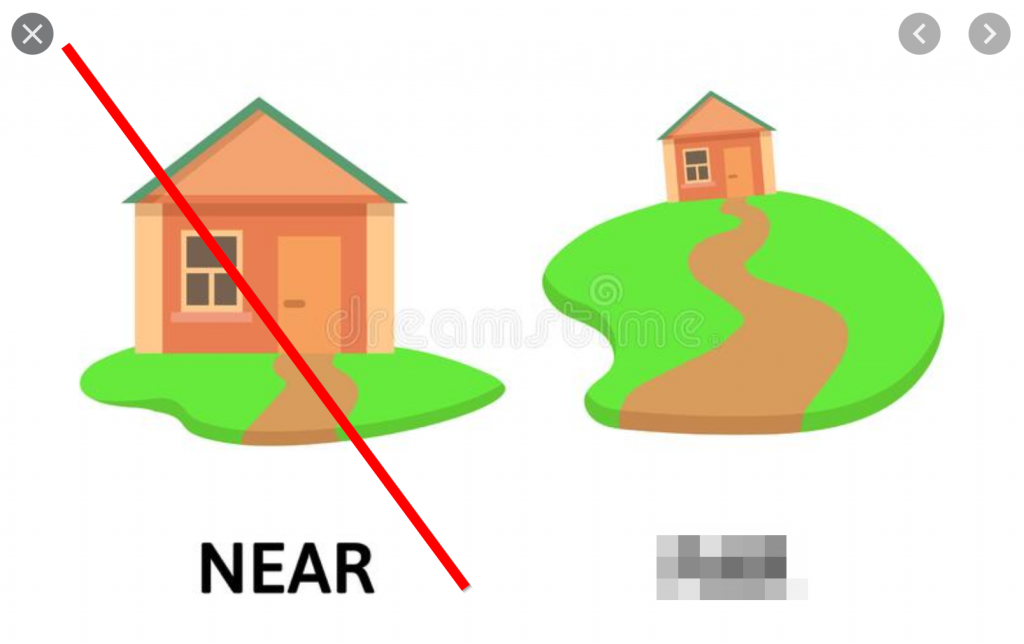
Draw one more line.
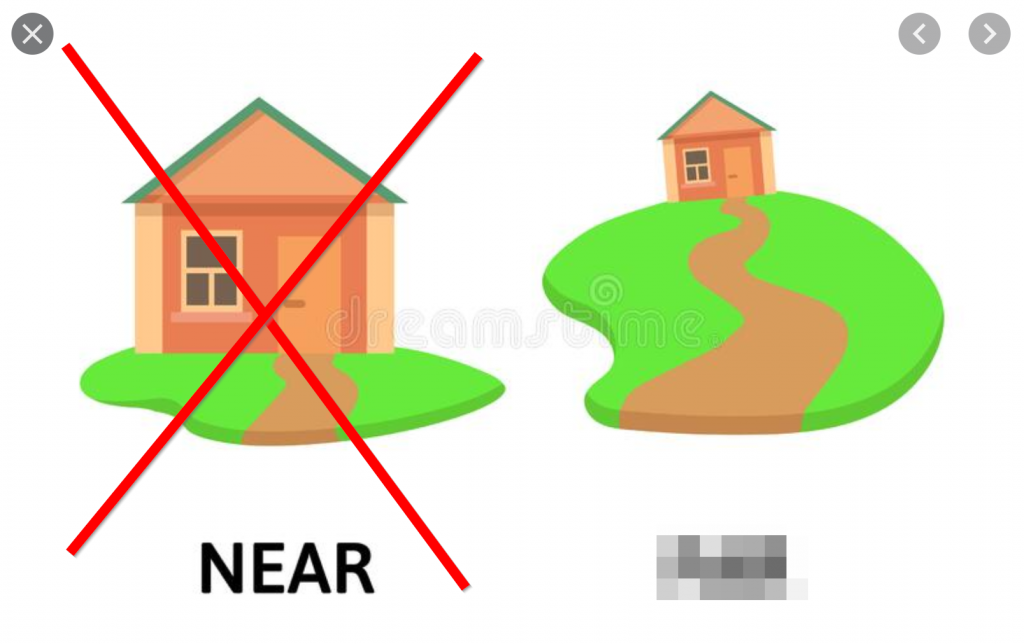
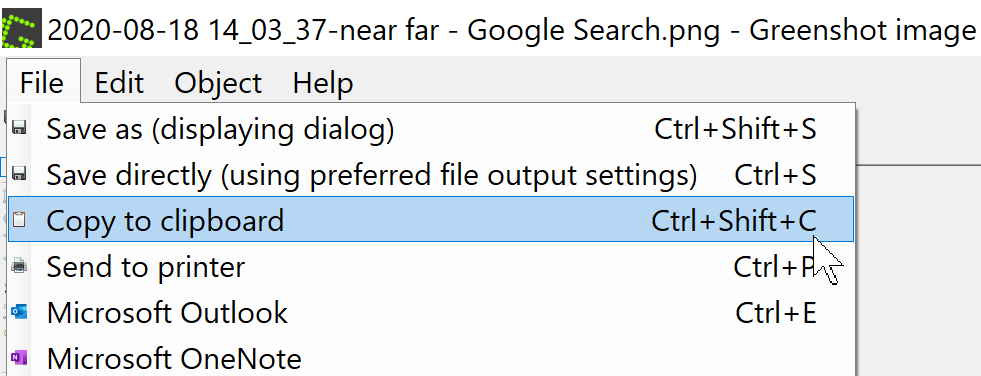
Press Ctrl+C or click File->Copy to clipboard
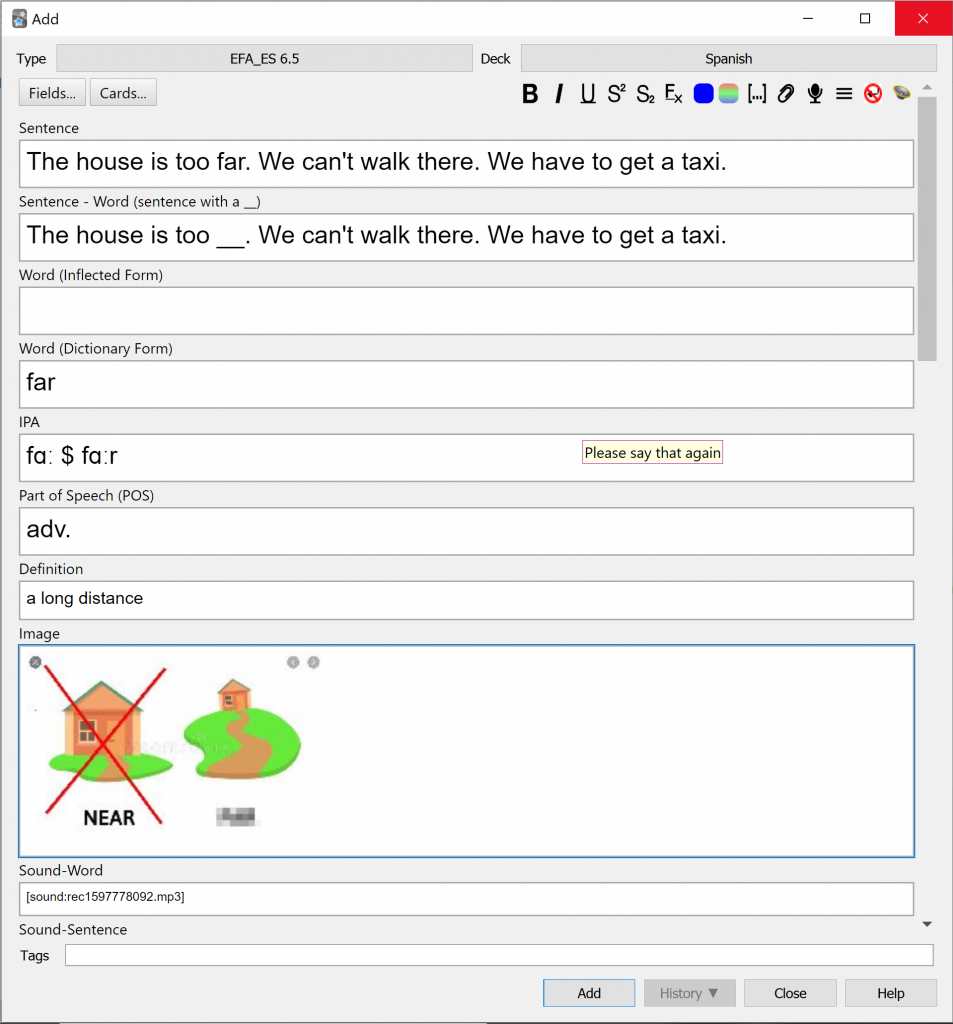
Paste the image to your flashcard.
Extra Tips
Here are the most useful keyboard shortcuts for Greenshot:
- L – draw line
- A – draw arrow
- R – draw rectangle
- E – draw ellipse (circle)
- O – obfuscate (make text blurry)
Leave a Reply
You must be logged in to post a comment.