
Intro
The FluencyDB Flashcard Library contains thousands of perfect, ready-made flashcards for all the most frequently used words in English and Spanish
In this tutorial, I’m going to show you how to use this library to collect and download flashcards. We’ll cover three simple steps:
- Browsing and choosing flashcards
- Adding flashcards to your collection
- Downloading the flashcards and loading them into Anki
Tutorial
You don’t want to collect all the flashcards in the library because you don’t need all of them. You want to collect just the ones that are useful for you. This means you shouldn’t add flashcards for words that you already know, and you don’t want to add flashcards with words and sentences that are too difficult for your current level.
I’m going to walk you through this tutorial as if you are a complete beginner. If you are more advanced, make sure to click on the more advanced categories of flashcards so you don’t waste your time with easy words.
Browse & collect
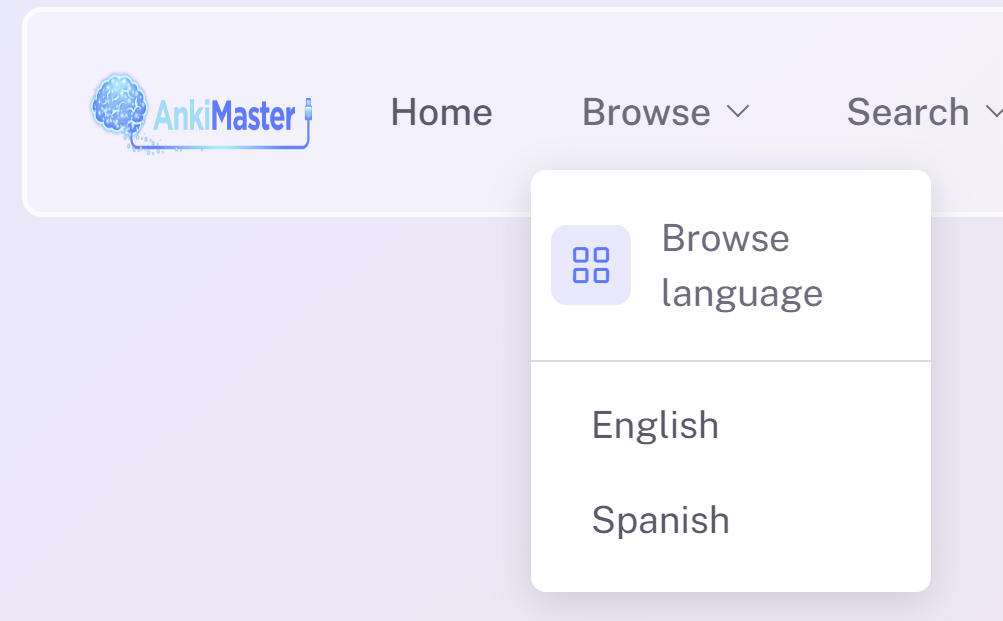
Click on Browse English or Spanish.
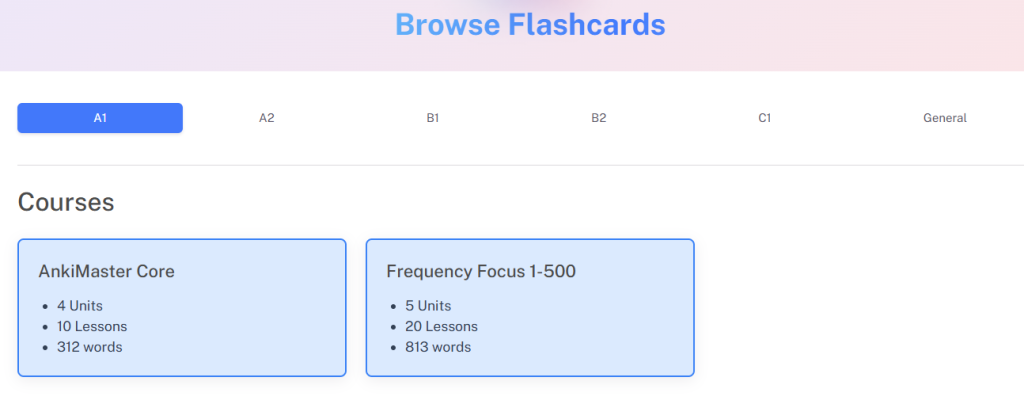
Here we can see all the courses for level A1 (beginner). This Frequency Focus course contains the top 500 most frequently used words in the language. Let’s start here. Click on Frequency Focus 1-500.
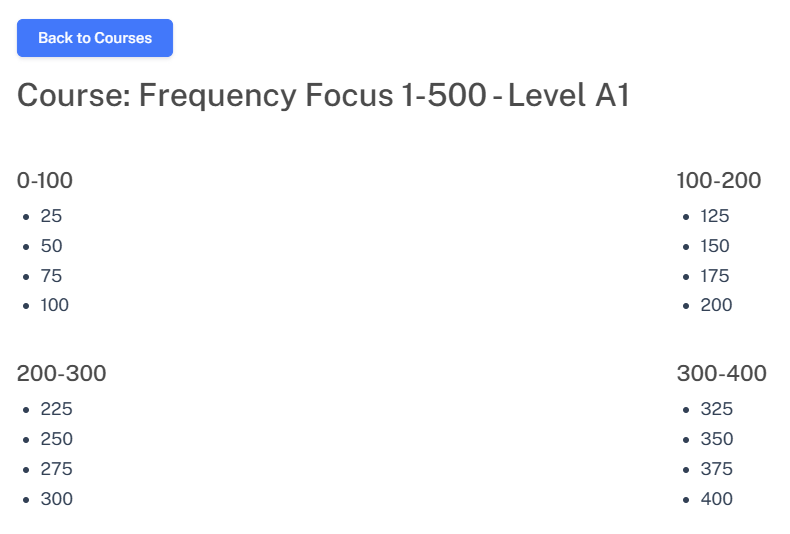
Now I can see all the frequency categories. 0-100 shows the top 100 most frequently used words, 100-200 shows the next top 100 most frequently used words, etc. Let’s click on the very first set of flashcards, number 25.
Do you recognize some of these words? You probably already know some of them. These are the most common words in the language.
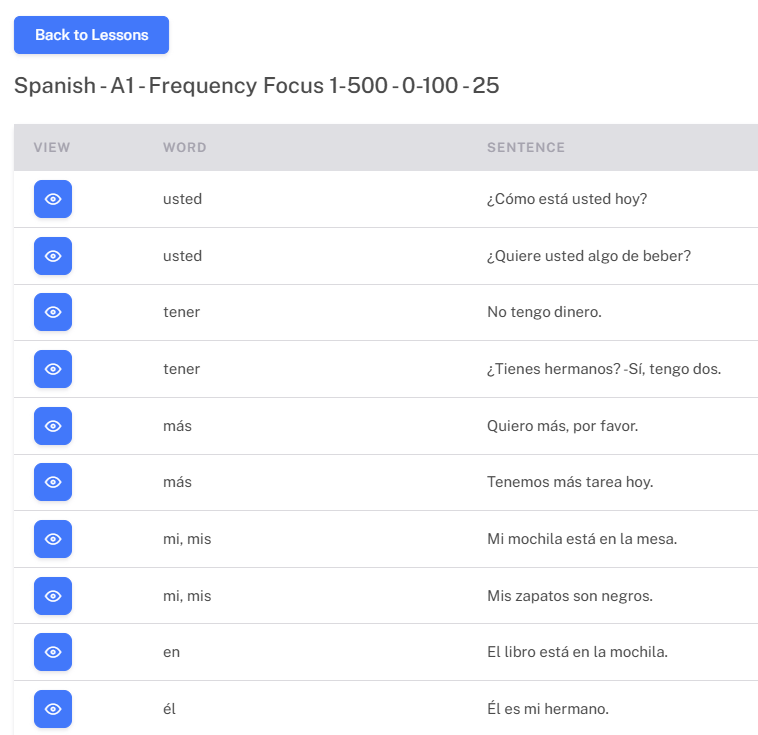
Looking at just a word and sentence is probably not enough for you to understand or learn anything, so let’s click the little eye icon so we can see the full flashcard with the pictures, sound, and translations. I’m going to look at the word “tener.”
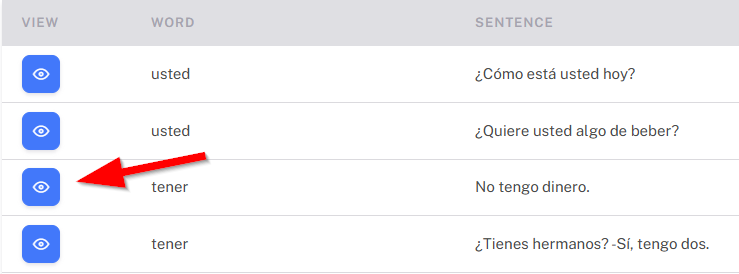
Now I can see the flashcard appear in a pop-up window.
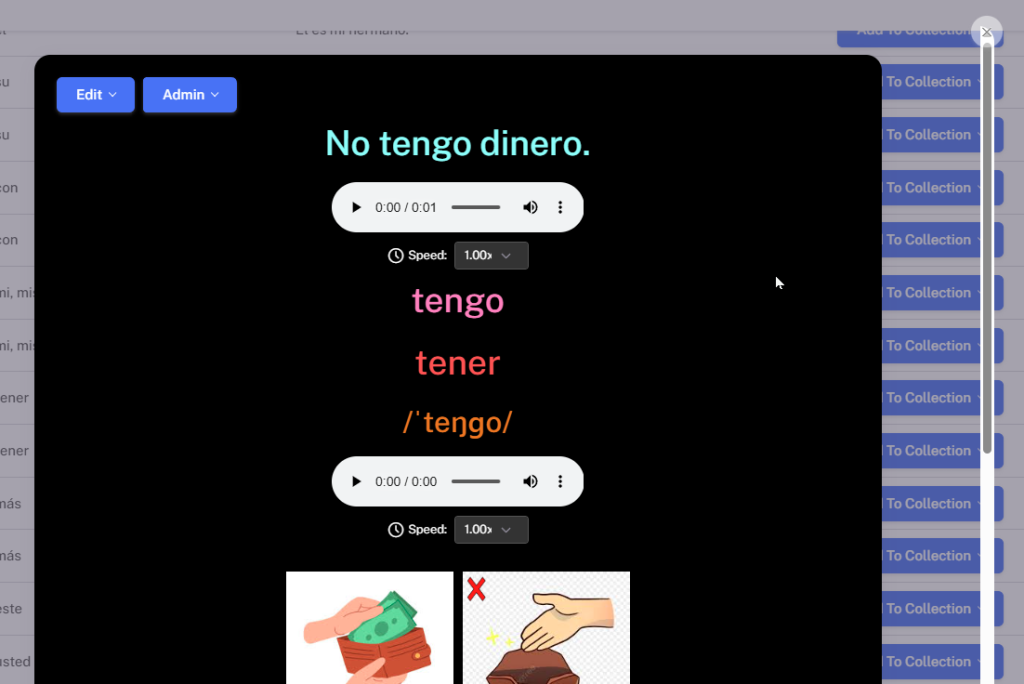
Depending on the word, the meaning may not be immediately obvious from looking at the pictures. Try to figure it out if you can. If you can’t figure it out after looking at the sentence and pictures, scroll down and click on the hidden translations.
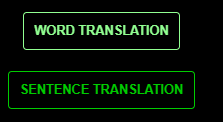

Now I know that “tener” means “to have.”
In this sentence, the verb is conjugated to “tengo.” That’s why we see “tengo” in pink text. “Tener” and “tengo are the same word, just two different forms.

If I want to study this flashcard, I close the flashcard view window and click Add to Collection. The flashcard will be saved to your collection.



I should continue browsing the list of words, clicking on any words that grab my attention. Some of the most frequently used words of a language are actually some of the most difficult ones. Don’t be afraid to skip over words that just aren’t clicking in your brain yet. That’s completely natural. You can come back to the list later after your brain has absorbed more of the language. You will always be able to see which cards you have added and which ones remain.
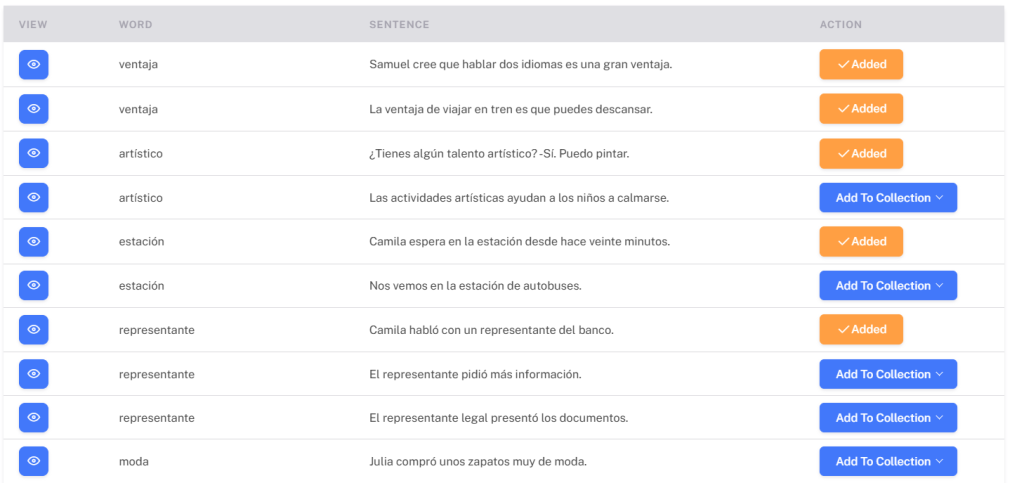
You don’t need to add all the flashcards. Most words have several examples. I recommend reading through each example and choosing the ones you prefer. Some words have many meanings and will require multiple examples in different contexts to fully understand.
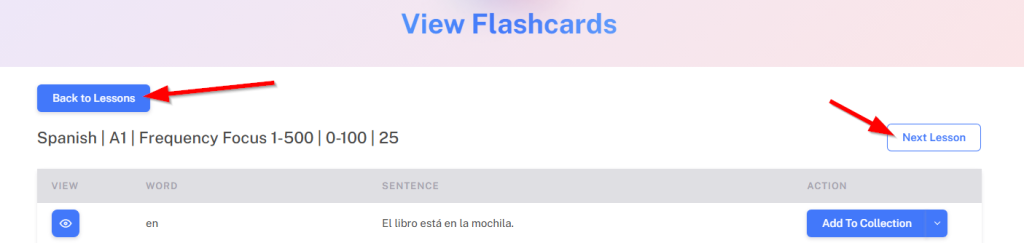
You can advance to the next lesson by clicking the “Next Lesson” button, or go back to the menu of lessons by clicking the “Back to Lessons” button.
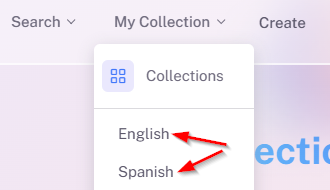
My Collection
You can see all your collected cards by clicking My Collection – English or Spanish.
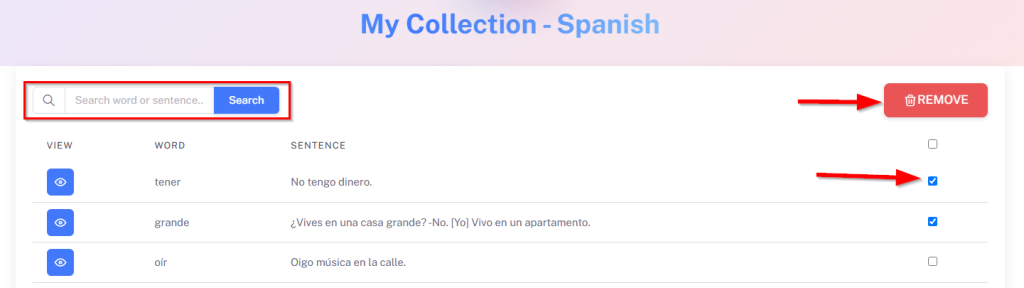
You can also search your collection and remove flashcards.
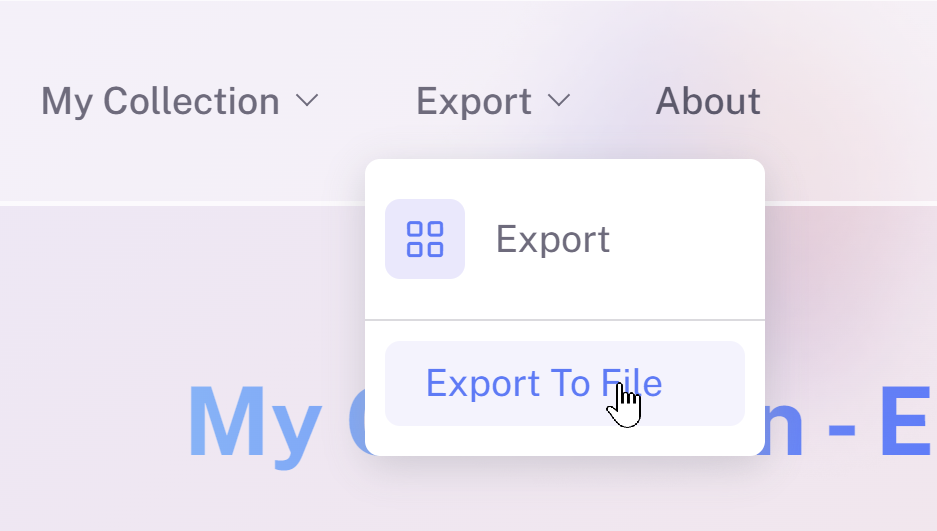
Export flashcards
After collecting some flashcards, the next step is to export them. Click on Export To File in the navbar at the top of the screen.
Click Export Flashcards. Be patient, it may take a minute or a few if you have lots of flashcards to export. Do not navigate away from the page while it is working.
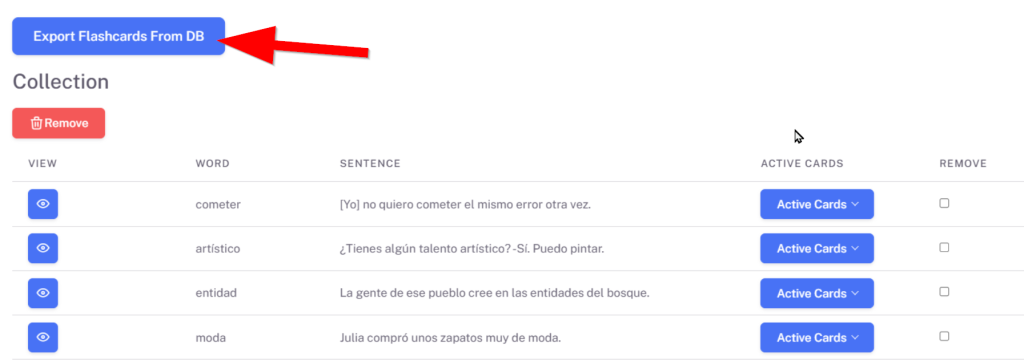
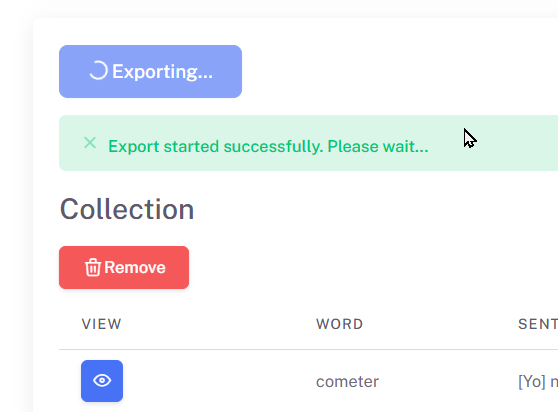
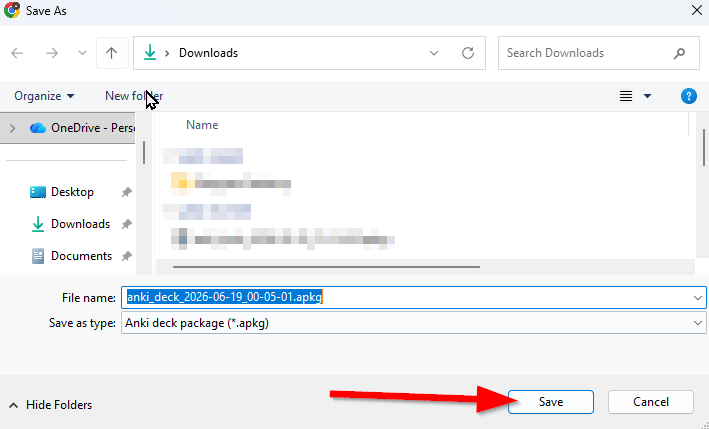
When this window appears, click Save to save the file.
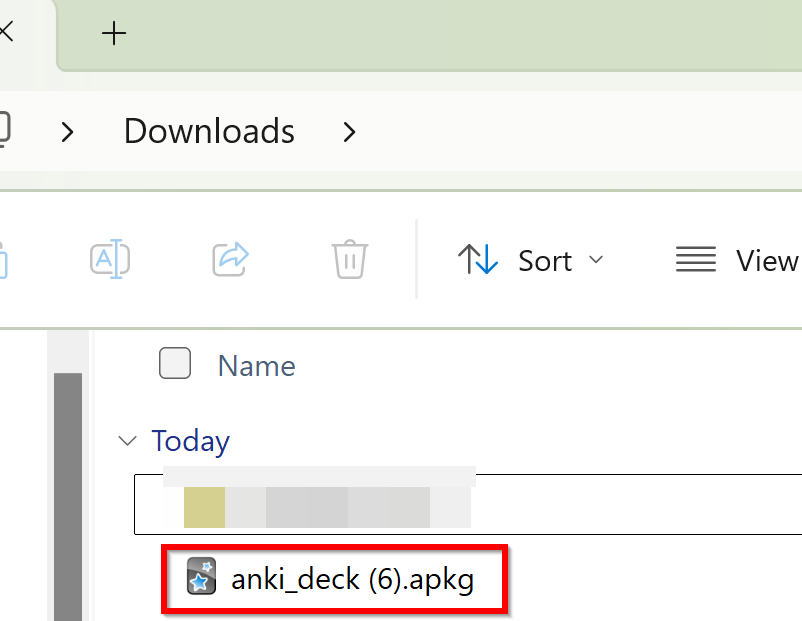
Wait for the export to finish. You will see a new file in your downloads folder. This is your flashcard package.
Import flashcards into Anki
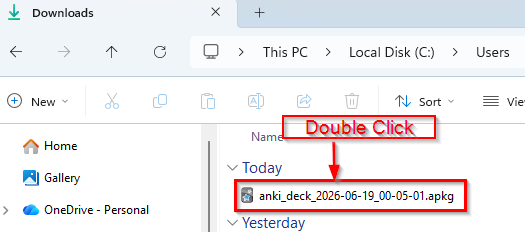
Now you have an Anki deck package file in your downloads folder. Make sure your Anki app is open, then double-click the file to import it into Anki.
You will see a window like this. Click the blue Import button.
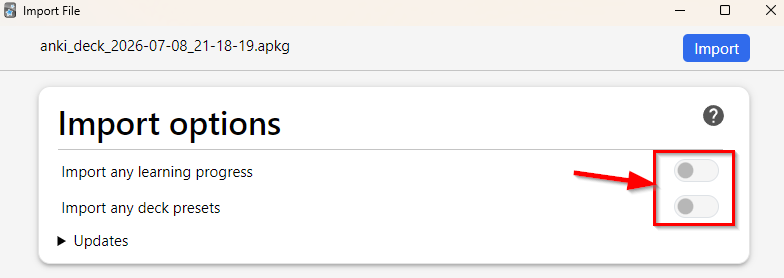
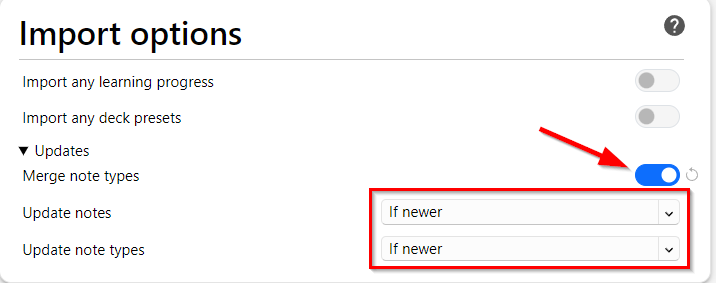
⚠️IMPORTANT: Make sure the first two toggles are off as you see in the picture above. Click the arrow where it says Updates. Then make sure that toggle switch is on, and that Update notes and Update note types is set to “If newer.” This just makes sure you always get my most updated flashcard template.
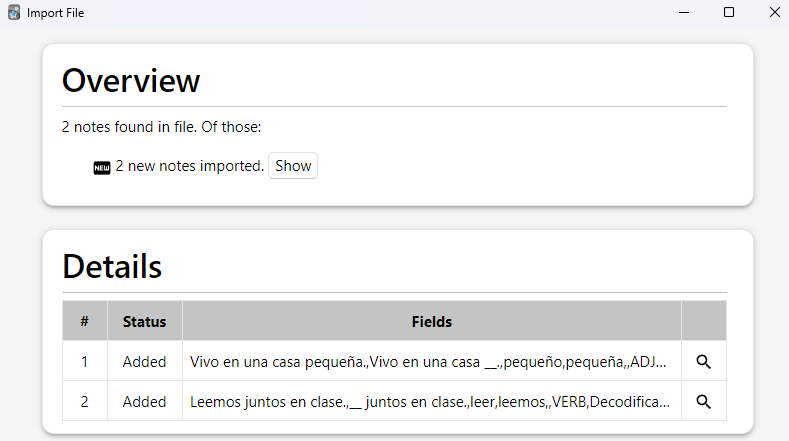
Next, it will show a summary of what it imported. I can see it imported two flashcards. I can close this window now.
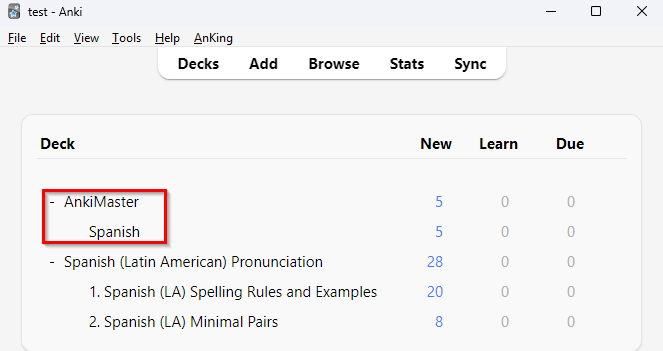
You can now see your new flashcard deck at the main Anki window. Click on the deck.
Next Tutorial
Do you know how to study your AnkiMaster flashcards? Make sure you read The AnkiMaster System – How to study your cards.
Leave a Reply
You must be logged in to post a comment.